Paper Trails in Silicon: A Practical Audit of Networked Multifunction Devices

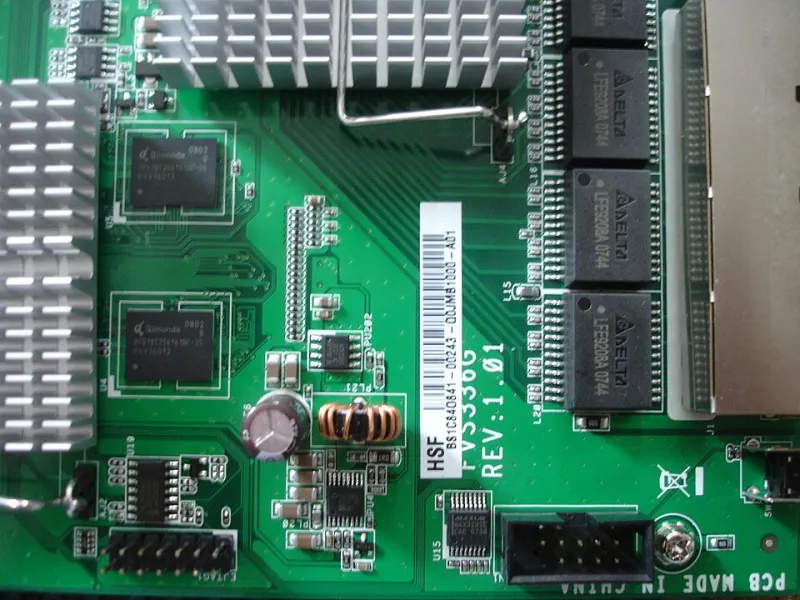
Photo: hyolee2, CC BY-SA 4.0, via Wikimedia Commons
In many UK offices, the multifunction device is treated as furniture. It sits by the window, receives paper and toner, and is called upon when a contract needs signing. In reality it is a networked computer with a disk, an operating system, a web administration interface, an address book and a queue of documents. That distinction matters because these devices frequently sit outside patching cycles, access reviews and offboarding checklists, even though they hold credentials and customer data.
The audit set out below is designed to be completed in a single afternoon for a typical small or medium-sized business. It is not a penetration test. It is a structured review that produces an evidence trail suitable for client questionnaires, insurer requests, lease-return conversations and the wider expectations of the UK GDPR and the Data Protection Act 2018.
Why the device by the window escapes review
Patching usually covers servers and endpoints. Access reviews usually cover line-of-business applications and SaaS. Offboarding usually covers email, VPN and the finance system. Printers are often procured through facilities or an office manager, supplied under a lease and maintained by a dealer. Firmware updates are rarely included in the monthly maintenance window. Address books accumulate entries for former staff and retired file servers. The result is an unmanaged endpoint with local storage and network access.
Set the scope and gather what already exists
Begin by listing every device that can print, scan or copy over the network. Include desktop printers with network cards, label printers and any device supplied under a managed print contract. Collect lease agreements, dealer contacts, serial numbers and physical locations. Use DHCP records or a network scan to confirm IP addresses, and record the administration interface address for each device. Assign a single named owner, whether in IT or facilities, so that responsibility is not split between departments.
Step one: confirm administrative access
Log in to each device's web interface. Check for default credentials such as admin/admin, admin/password or a password derived from the serial number. If any remain unchanged, replace them with unique credentials held in the organisation's password manager. Remove unused accounts and disable remote protocols that are not required, including Telnet, FTP and unauthenticated IPP where the device supports it. Record the date and time of each change. Confirm that the administrative password is known only to those who genuinely need it, not to the whole office.
Step two: trace scan-to-email and file destinations
Open the address book and the scan profiles. Identify every email account used for scan-to-email. If the device sends mail using a named employee's mailbox, that is a dependency on a single person and a potential source of credential exposure. Move the device to a dedicated service account with the least privilege required, and enable multi-factor authentication where the mail provider supports it. For scan-to-SMB or FTP destinations, map each entry to a file share and confirm the permissions. Remove destinations that point to old servers, personal folders or former employees. Test one scan to a controlled destination and confirm receipt. Record the destination list as evidence.
Step three: retained jobs and local storage
Many devices retain print jobs, scanned copies and faxes on an internal disk. Check the settings for job retention, save-to-folder behaviour and copy storage. Clear the job history and set automatic deletion to a short period, typically between 24 and 72 hours. If the device supports disk encryption, enable it. If it does not, note the absence in the risk register and consider whether the device should handle payroll, client or HR documents at all. For higher-risk environments, secure print release can reduce the chance of documents being left in the output tray.
Step four: firmware, logging and network placement
Check the vendor's security advisories and confirm the firmware version. Apply updates where the device is still supported. If the model is out of support, isolate it on a separate network segment and limit what it can reach. Enable logging where possible, sending events to a central log or syslog server. At a minimum, retain administrative login and job logs for 30 days. Place printers on a separate VLAN from servers and workstations, restrict outbound internet access and confirm that no port forwarding exposes the device to the internet.
Step five: disposal, lease return and offboarding
Before a device is disposed of or returned at the end of a lease, perform a factory reset and remove or destroy the storage medium. Ask the dealer for written confirmation of data erasure, particularly where the contract requires the disk to be returned. Comply with WEEE requirements for electronic waste. Update the asset register, remove DNS and DHCP reservations, and close monitoring alerts. Add printers to the leaver checklist so that a departing employee's scan destinations and mailbox credentials are removed at the same time as their email account.
Building the evidence trail
Create a one-page record for each device. Include the serial number, location, owner, firmware version, administrative account changes, scan destinations reviewed, retention settings, network zone and disposal date. Where a certificate of destruction is provided, attach it to the record. Store the record alongside the asset register. This is the difference between an informal tidy-up and a defensible control that can be shown to a client, an insurer or a supplier.
A short checklist for the afternoon
- Inventory every networked print, scan and copy device, including leased equipment.
- Confirm administrative credentials are unique and stored securely.
- Review scan-to-email accounts and move them to dedicated service accounts.
- Remove stale SMB and FTP destinations.
- Set job retention to a short automatic deletion period.
- Check firmware and apply supported updates.
- Enable logging and confirm the device is not directly exposed to the internet.
- Document disposal and lease-return procedures, including data erasure.
The multifunction device is not merely a printer. It is a small server with paper, and it deserves the same attention as any other endpoint that holds credentials and customer data. A half-day audit gives UK SMEs a clearer picture of what the device remembers and a practical record of how that memory is controlled.